Getting Started
Welcome to ITC HOTEL LIMITED ! Documentation for esay to handle our Software.
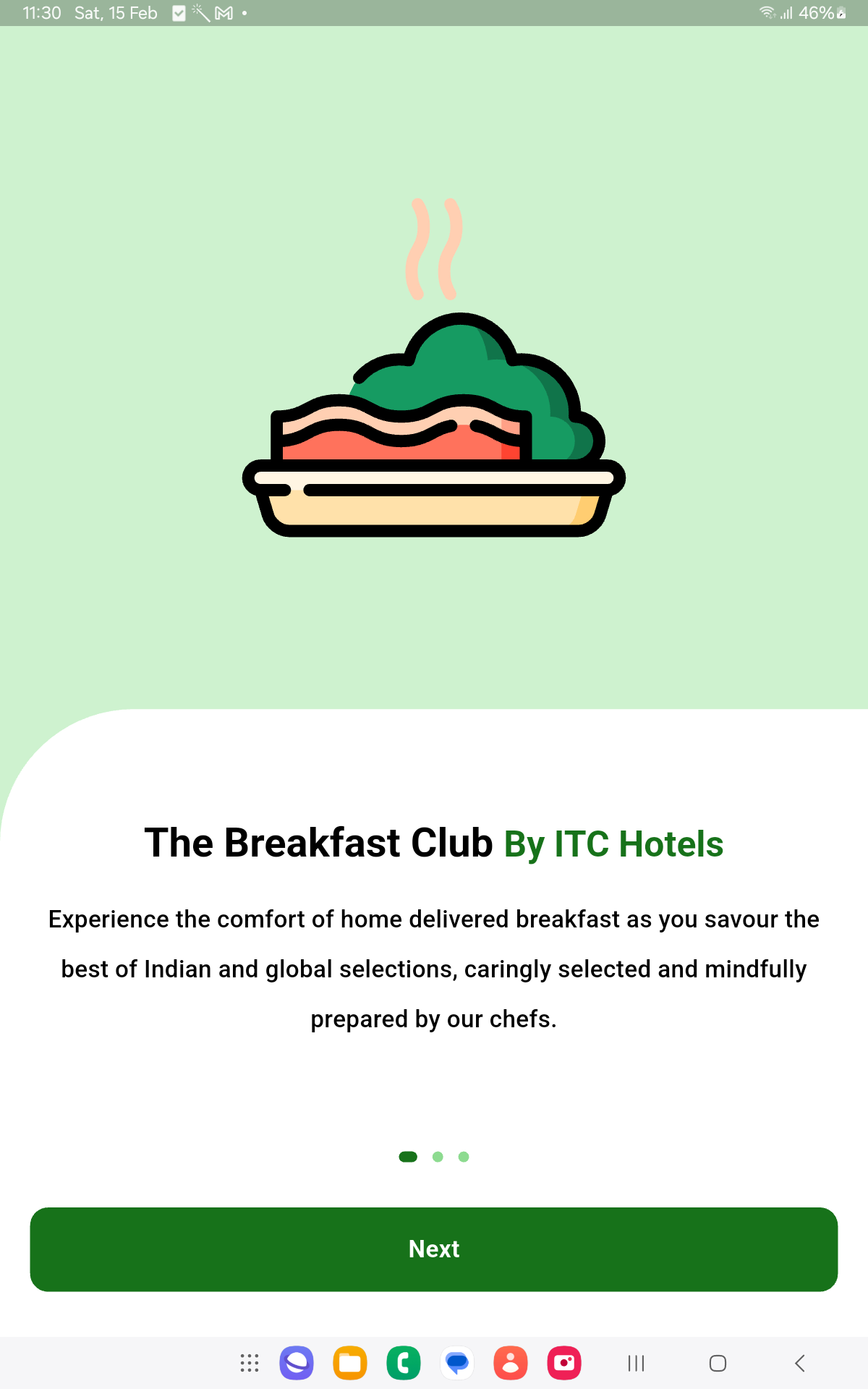
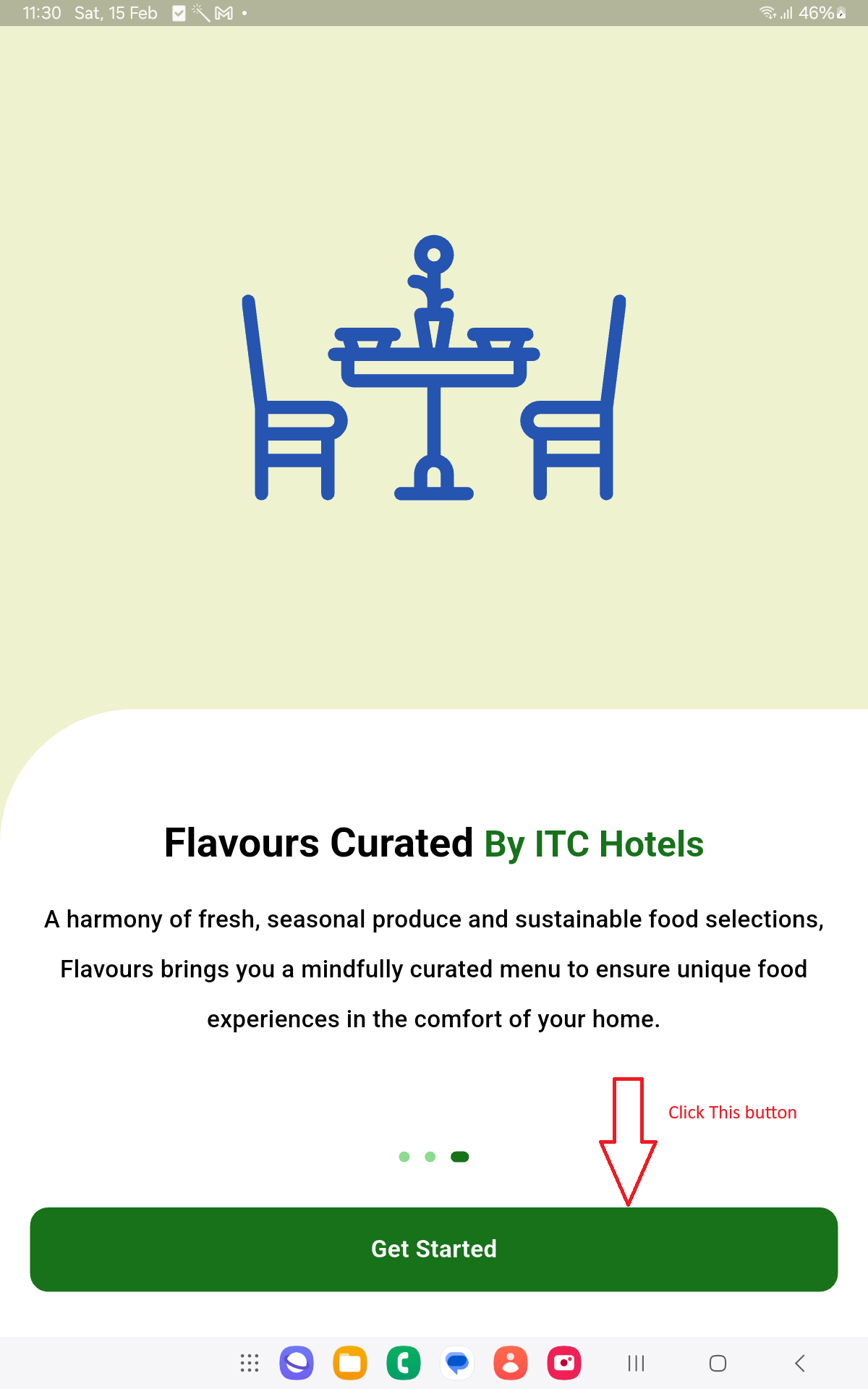
Activation Screen
Please follow the instructions in below to see how you can Activate the Application:
Please do not share this key verification process flow with anyone.
- Check “Internet Connection”
- Check “XLSX Viewer Installed In your Current Tab”
- Check “After Installed XLSX Viewer Then Procced to Key Verification”
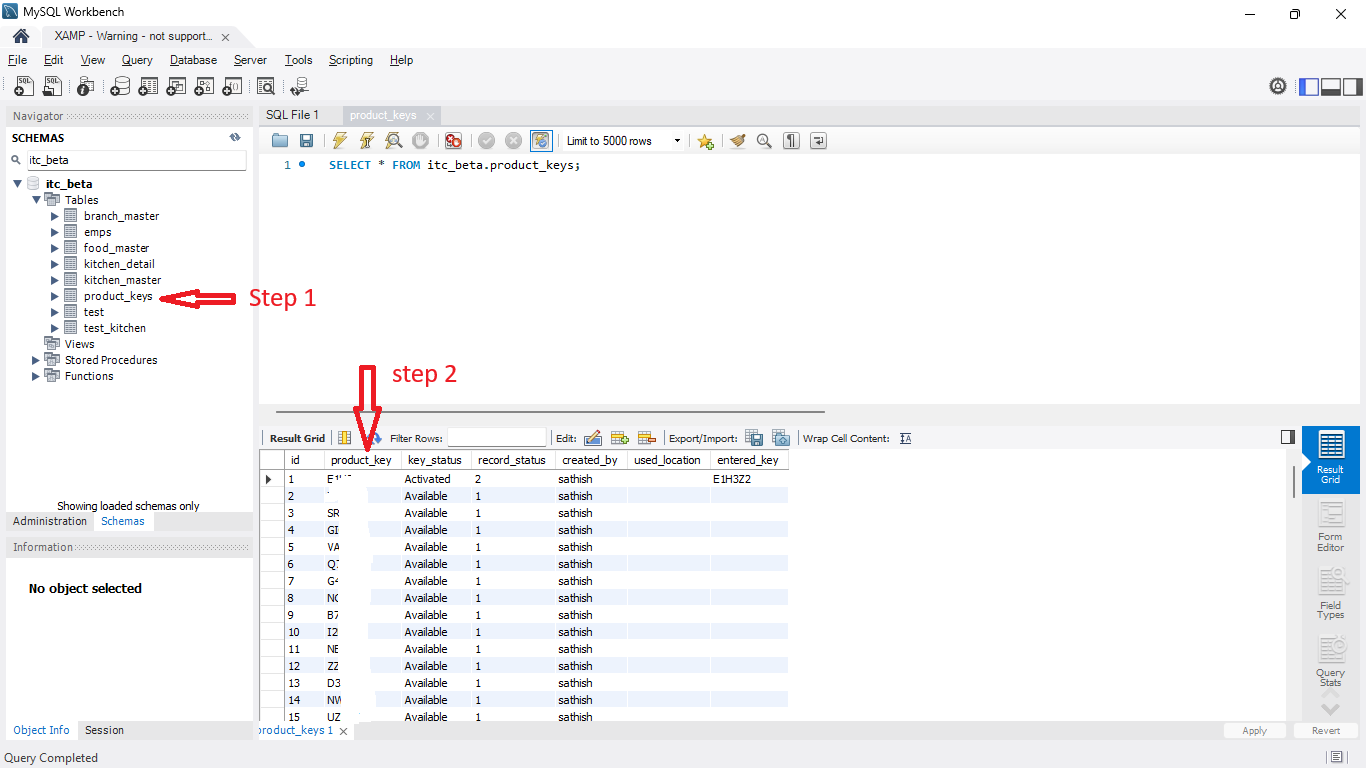
- DB Open “Plase Open Your Server Database.”
- DB.Product Key “Find The Table Like 'Product_key'.”
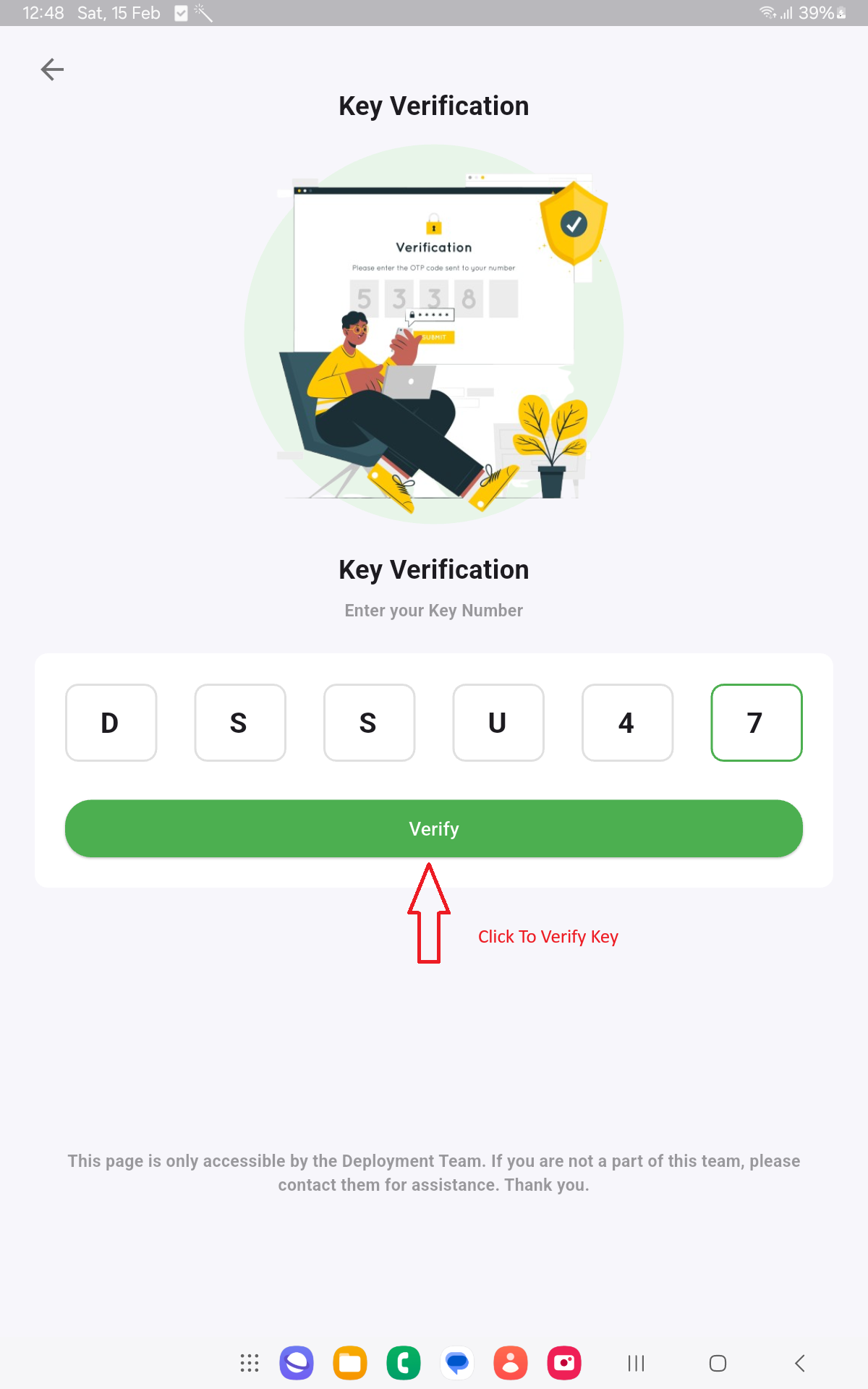
- DB.Get Key “Pick Any one Key and Enter That 6 -digit key in Tab”.
STEP 2
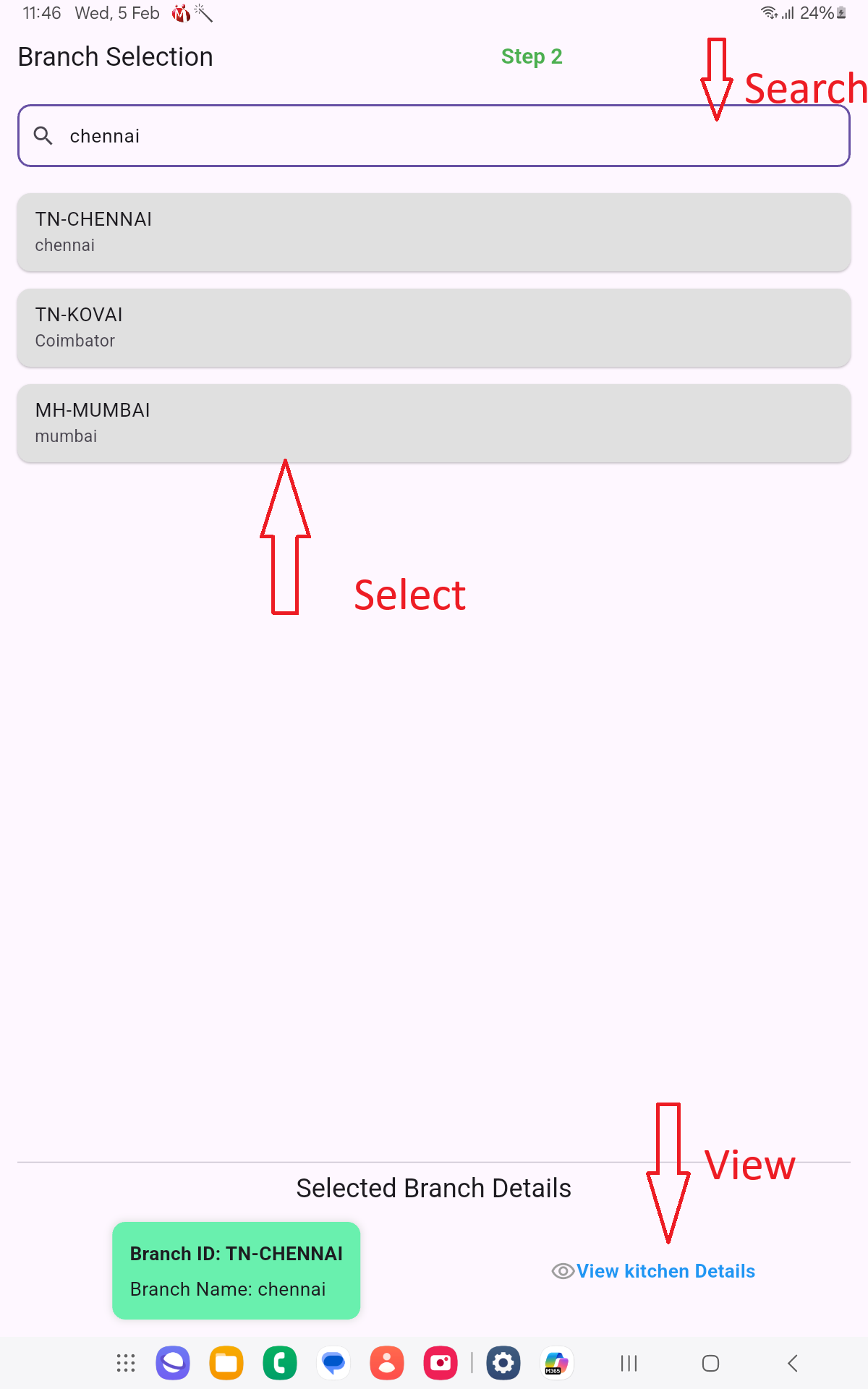
-> Step 2 is search branch and select that branch to click View detail of that selected branch:.
- Click Search Box
- Type “Branch Name Ex.TN-CHENNAI”
- Select “Select branch name in List”
- View “Click to view the branch details”
STEP 3
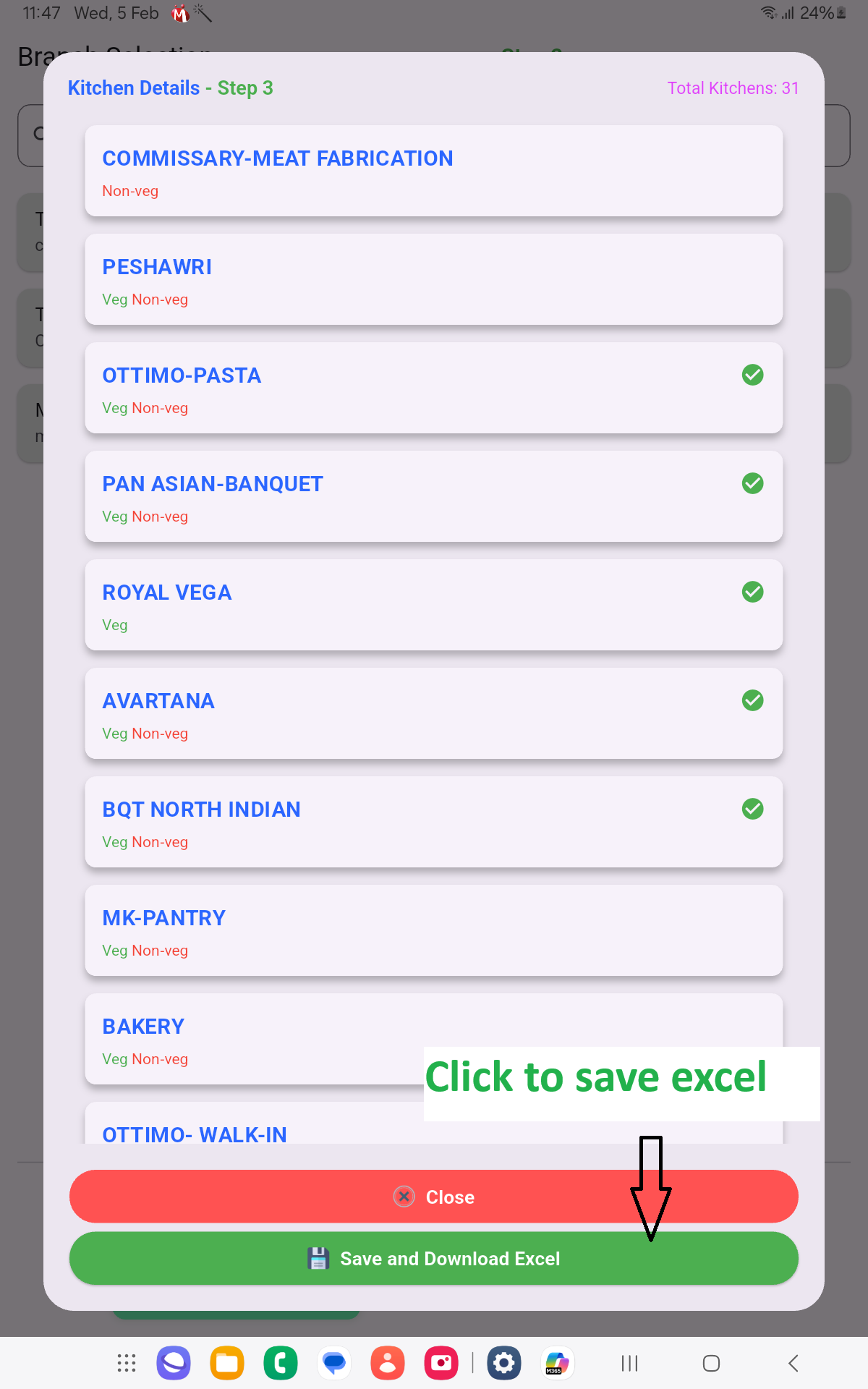
-> Select Minimum 5 Kitchen and Click the Button SAVE AND DOWNLOAD EXCEL.
- Select Minimum 5 Kitchen's
- Save “Click the Save and Download Excel”
- Preview “Preview Selected Kitchen data in your Local Device Excel File”
 Master Excel.png)
 save excel.png)
STEP 4
Search section are below
- Click Erase Button
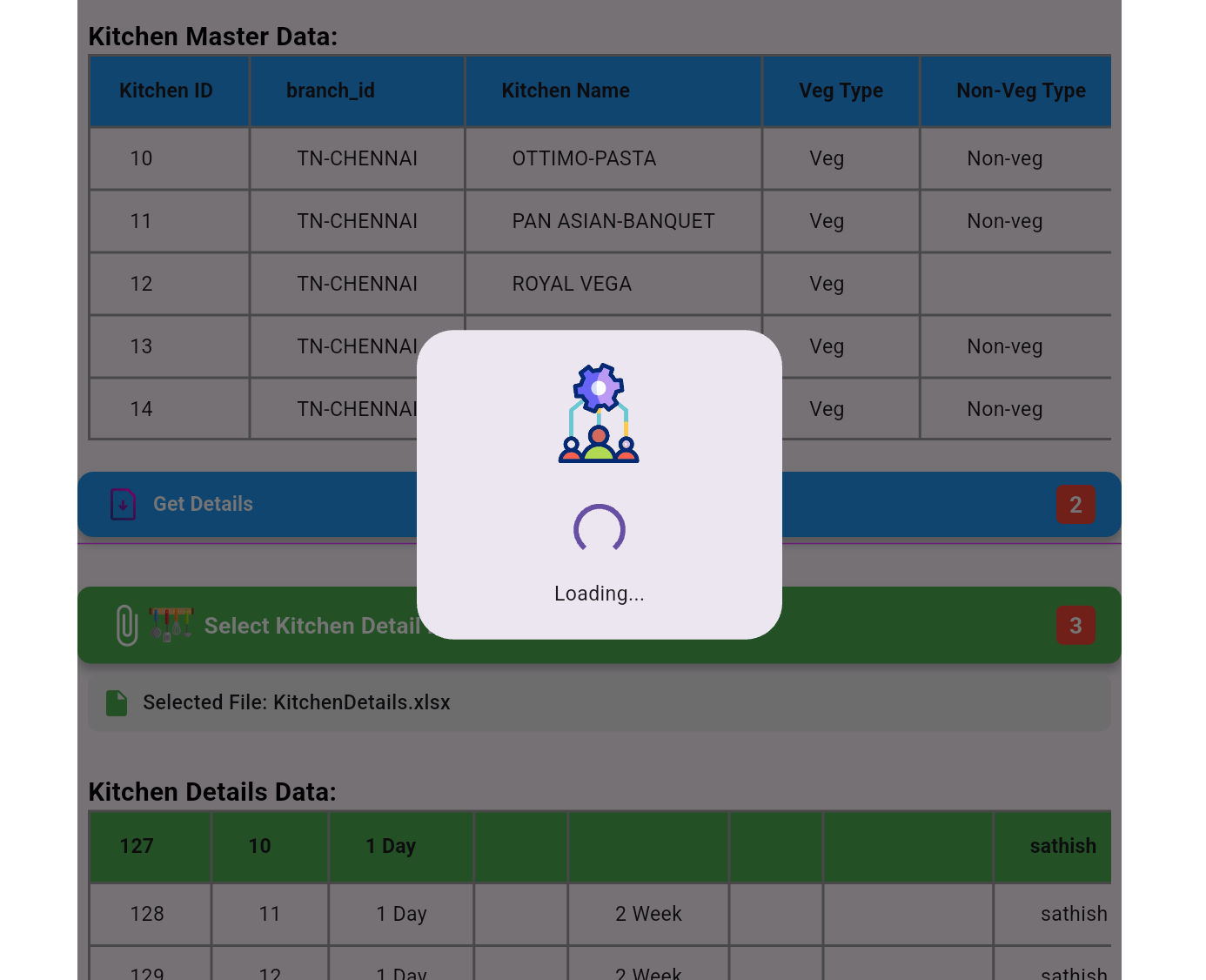
- Click “Choose Master Excel file”
- View “Master Excel List In TAB”
- Click “Get Detail Button to download detail Excel And save that”
- View “Master And Detail Excel List In TAB”
- Click “Upload to Database button ”
.png)
 download detail.png)
 download detail.png)
 save detail.png)
 upload.png)
STEP 5
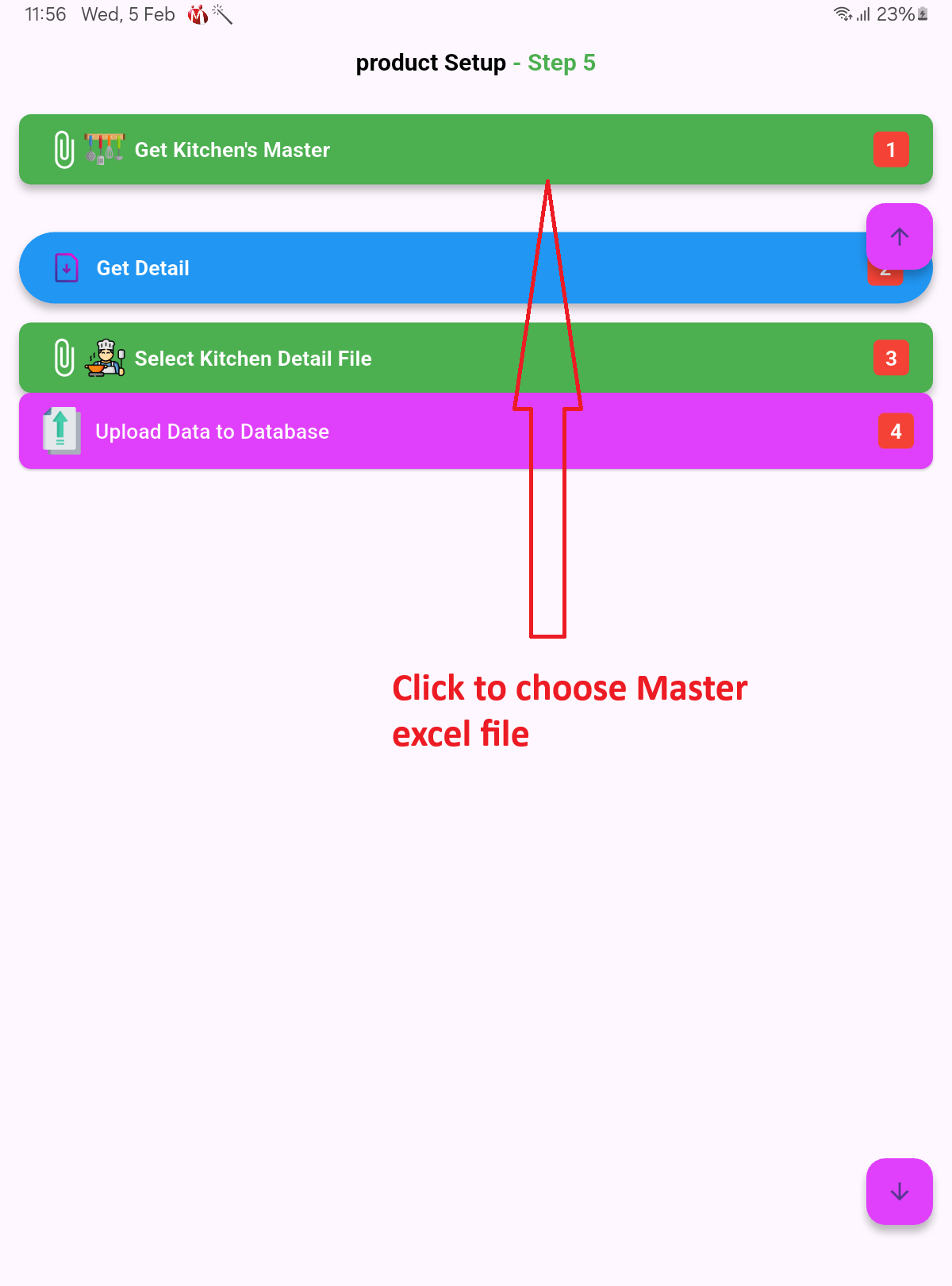
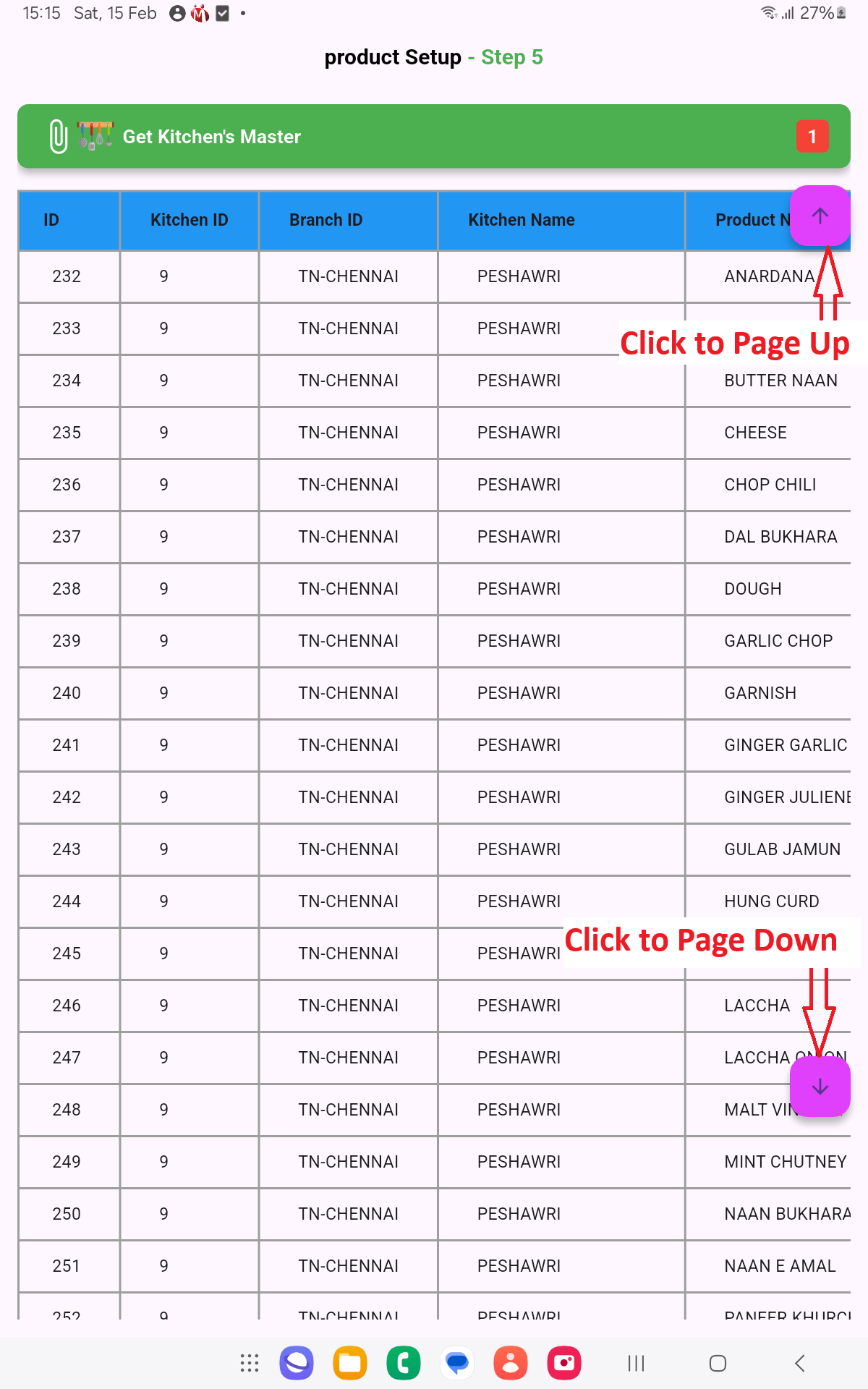
Insert Food Detail In Local DB
- Click “Choose Master Excel file”
- View “Master Excel List In TAB”
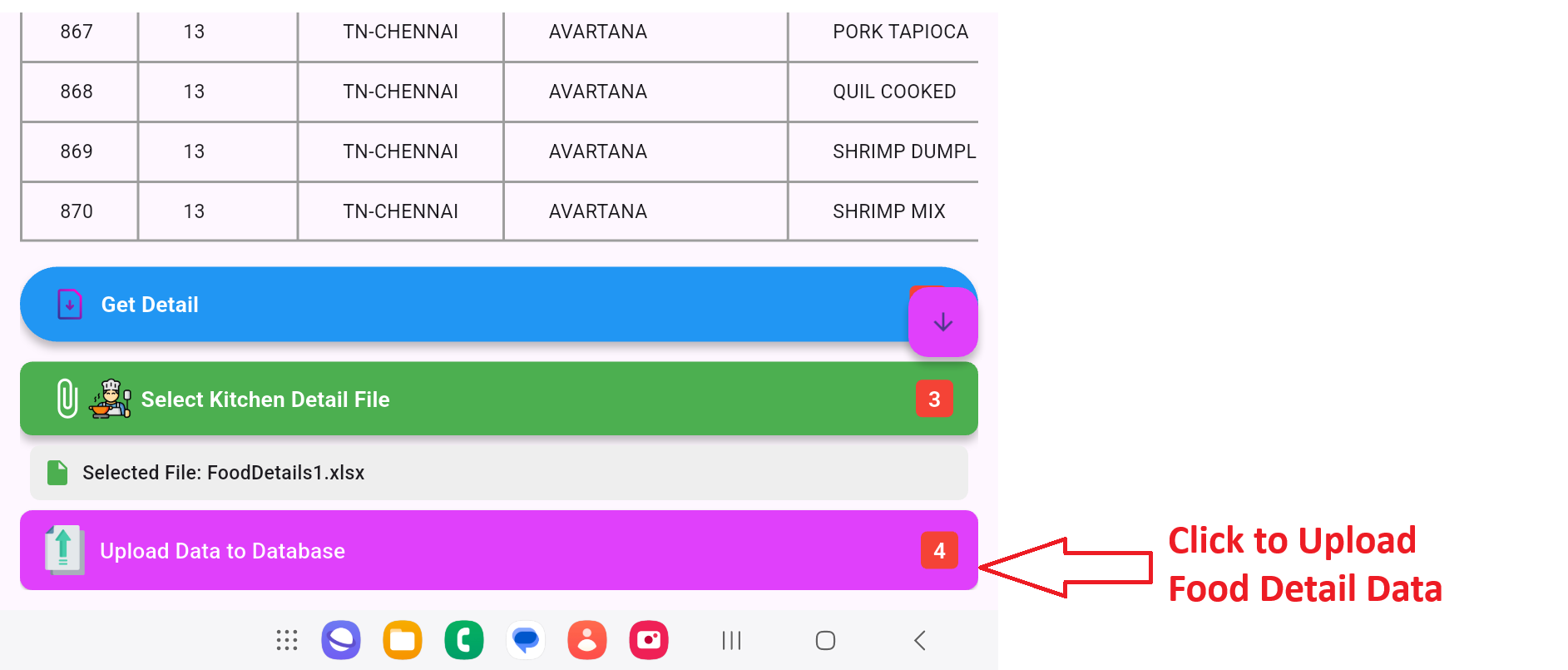
- Click “Get Detail Button to download kitchen Excel And save that”
- View “Food Excel List In TAB”
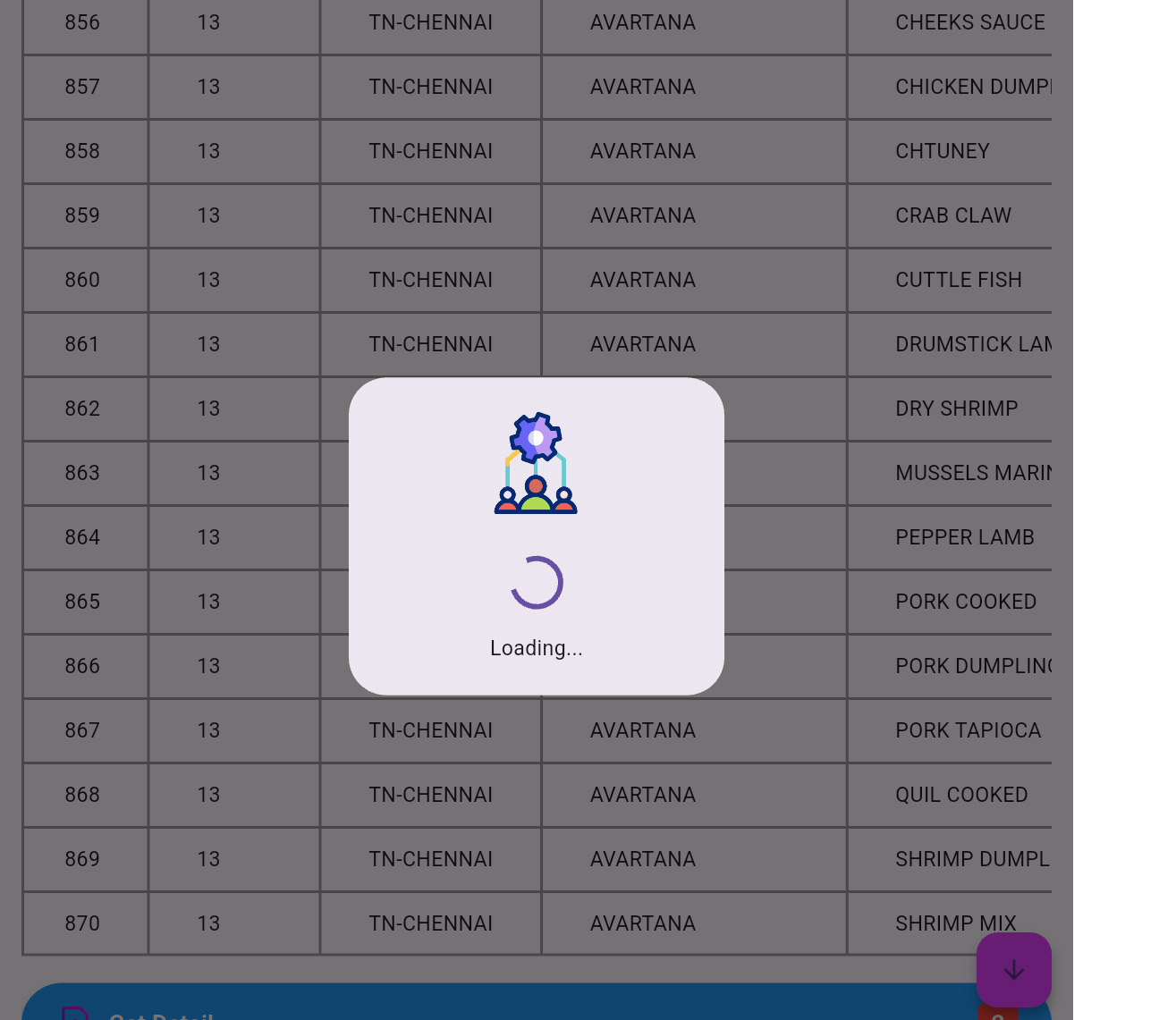
- Click “Upload to Database button ”
 get food.png)
 view excel.png)
 save food.png)
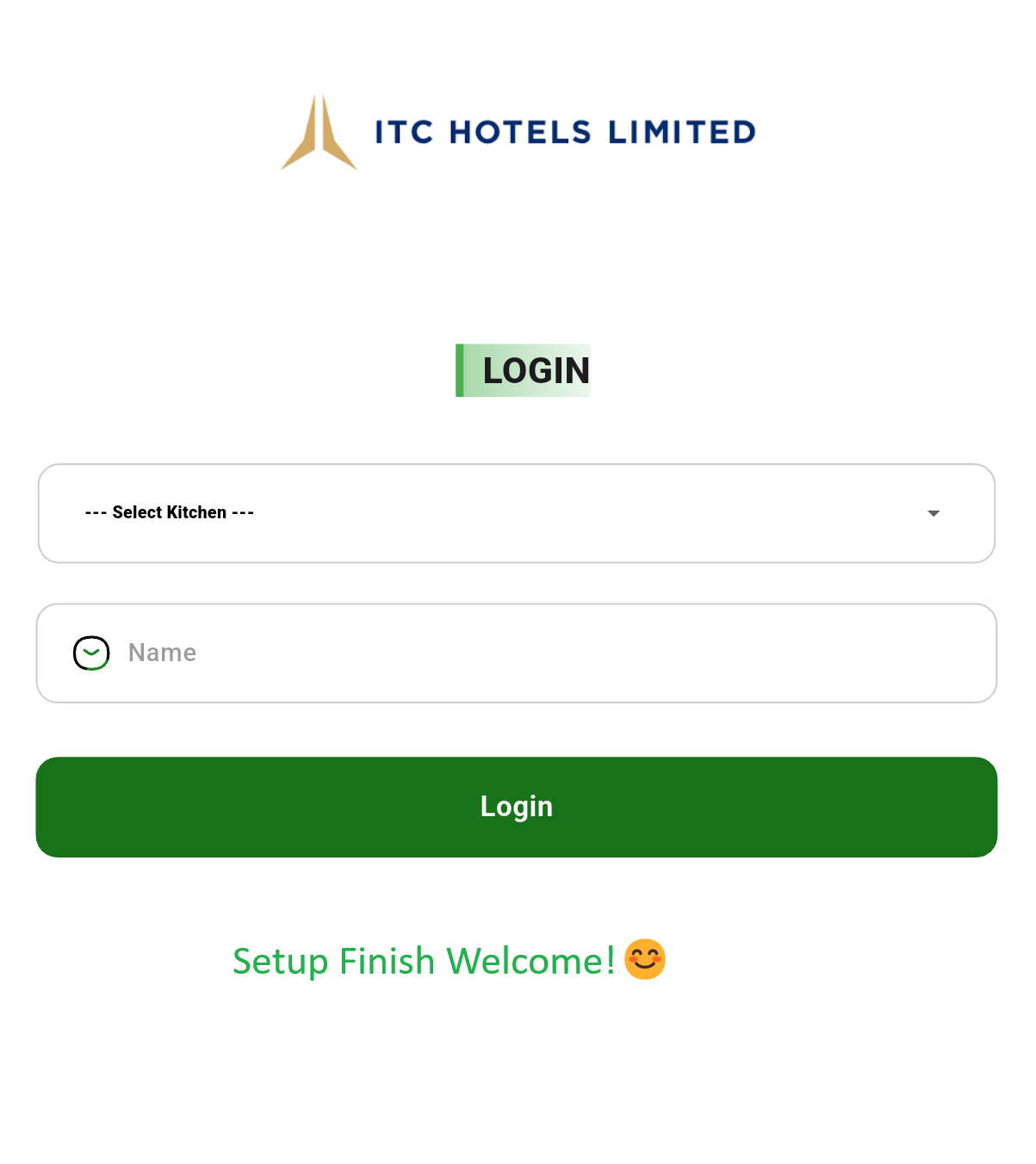
Finish Setup
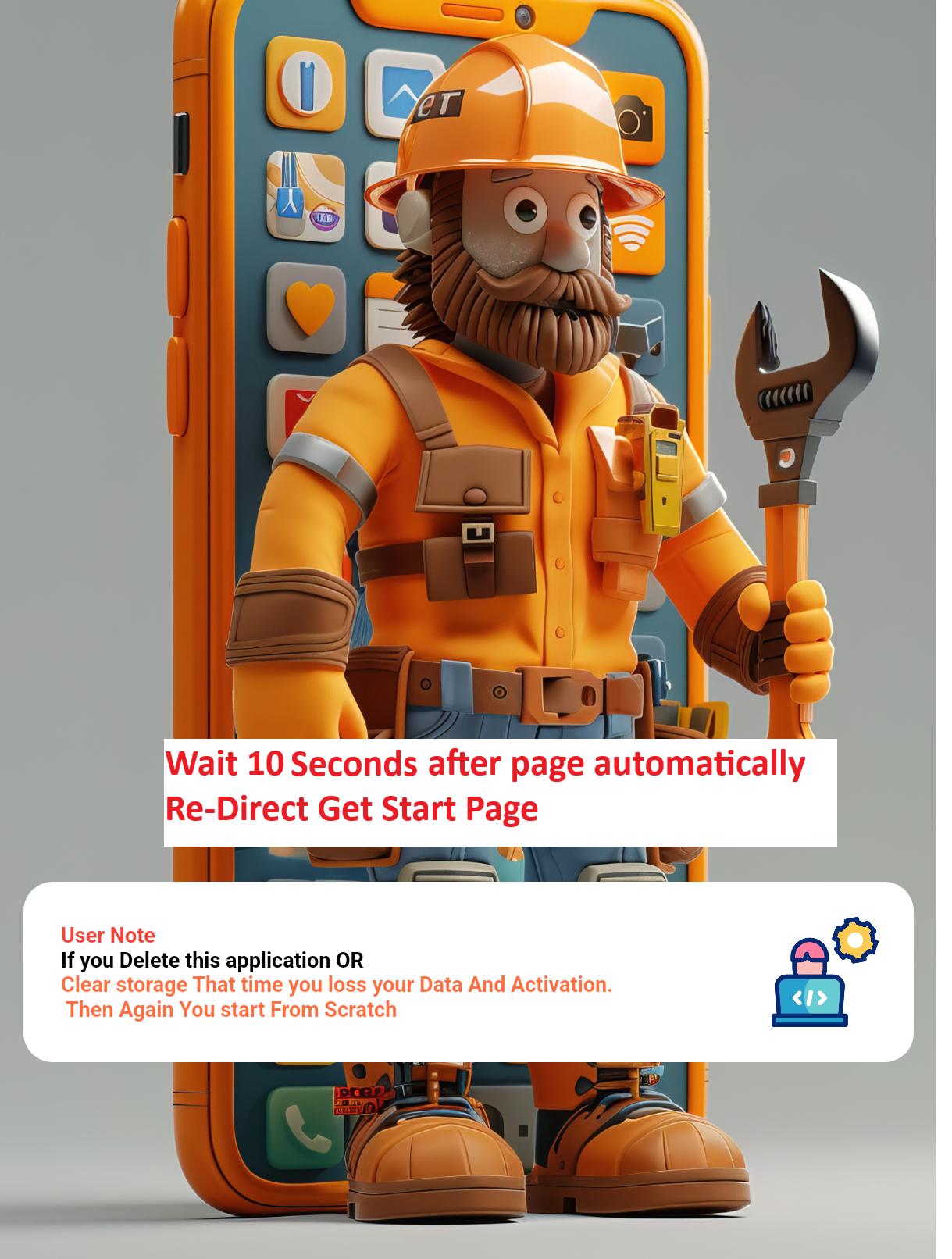
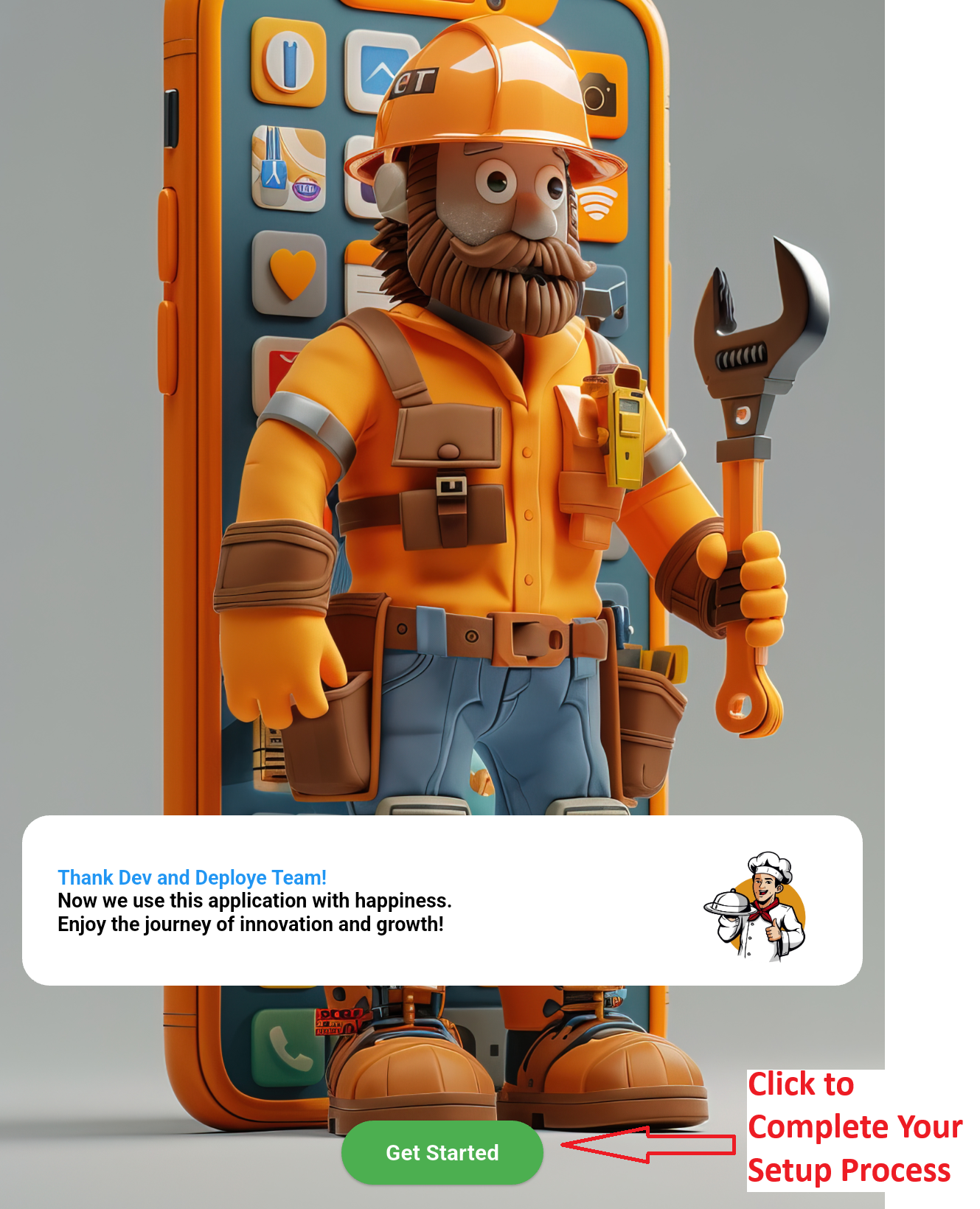
Wait 10 seconds automatically page re-Direct to Get Start Page: